


Opus 1

Opus 1 is a music player designed with classical music in mind.
Of course it does support the composer tag.

If you select a composer, you can choose to view works or albums
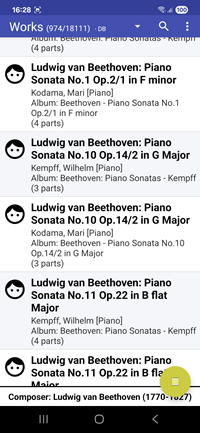
One of the problems with classical is that the titles are very long. Often too long to be displayed properly. Opus1 simply displays the entire title regardless of its length.
You might also select an album.
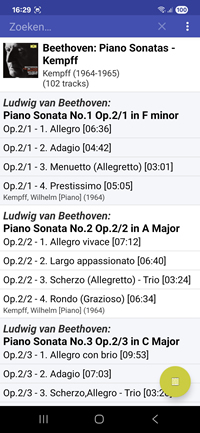
Normally you get a list of tracks (the title tag) making it hard to find out what composition is playing. As you can see in the screen shot I fixed it by prefixing the movement with the opus. This player doesn't need this kind of workarounds. If simply group the tracks by composition.
A big hand for Andreas Kromke!
Composition.
Opus1 uses the GROUPING tag to find the name of the composition. You can also use a custom tag called WORK.
You have to populate one of these tags yourself.
Database
The app starts by scanning the Android audio database. It does so each time you start it. In principle this should be fast but in my case (30.000+ tracks) often rather time consuming. Fortunately there is a very good solution, use the Music Scanner app to populate a proprietary database. Opus1 will scan this database and this is very fast.
In fact it should not. It checks the modification date of Android's internal database, and if that did not change, it will used its own cache database (created from the previous scan). I have never had problems with that behaviour. But:
If, for whatever reason, Android's own database often changes, you can skip this automatism by creating an independent, own database. This is a little bit more complicated and needs an additional application, because I did not want to concentrate that much functionality in a single application. And: Starting with Android 11, Google restricted file access for all applications except file managers.
installation:
- Uninstall Opus1
- Install Opus1 and Classical Music Scanner from F-Droid
- Optionally also install Classical Music Tagger
scanning:
- Start Classical Music Scanner and activate "full file access" in the menu
- If necessary, adapt your "paths for music files" in the settings
- Run the scan. This might take a long time. The app creates a database file.
playing:
- Start Opus1. This might take some time, because the app starts scanning the Android database.
- Activate "full file access" in the menu. Otherwise Google forbids to access the created database.
- In settings/metadata select "use own database".
- From now on Opus1 will ignore the system database. Further, the information elements in the own database are more precise and have less errors.
updating:
- When you add or remove music files, you must update the database manually.
- Run Classical Music Scanner and run "auto scan" mode. This looks for changes and updates the database accordingly, this should be faster than a total rescan.
- You can start the scanner inside Opus1 or Unpopular player via their menus.
Unpopular Player:
- The Unpopular Player uses the same database, if configured. Of course also this application must be installed from F-Droid, not Play Store, and needs full file access.